Token Management
All logins on NHR@KIT systems require two-factor authentication (2FA). In addition to your service password, a one-time password (OTP) must be entered on every login. NHR@KIT uses six-digit, time-based One-Time Passwords (TOTP), generated by a token — either a hardware device or a software app running on a separate device. Each code is valid only once and only for a short time window.
Two token types are supported:
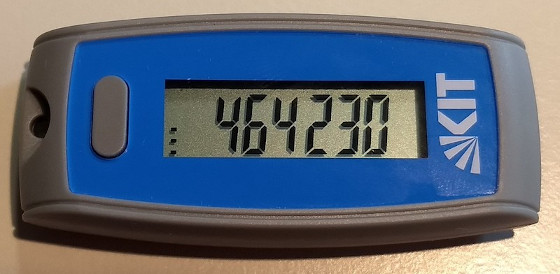
- Hardware token — a dedicated physical device (e.g. the KIT hardware token or a YubiKey) that generates OTPs.
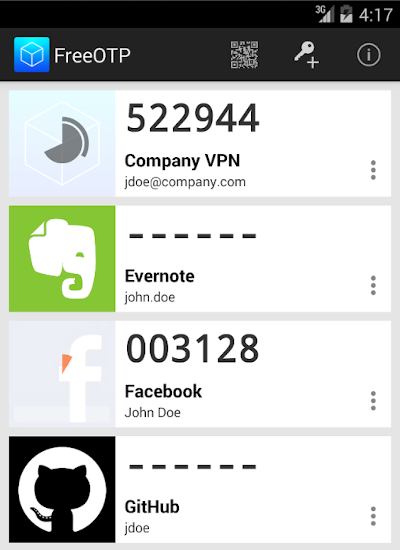
- Software token — an authenticator app on a smartphone or tablet (e.g. FreeOTP, Google Authenticator). The app must be on a separate device from the one used to log in.
Software token security
Do not install the token app on the same device you use to log in. If that device is compromised, an attacker can obtain both your service password and your OTP — defeating the purpose of two-factor authentication.
Managing tokens
Tokens are managed via the My Tokens / Meine Token menu item under Index / Übersicht on FeLS. You can register, activate, deactivate, and delete tokens here.
KIT users
KIT users can re-use existing hardware and software tokens for the HPC systems, but must manage them via my.scc.kit.edu/token instead of FeLS.
Register a new Token
- Log into FeLS and navigate to Index / Übersicht → My Tokens / Meine Token.
- Click New smartphone token to register a software token. If you have a YubiKey USB hardware token by Yubico, click New Yubikey Token instead.
-
A new window opens. Click Start to generate a QR code. This may take a moment.
QR code handling
The QR code contains a secret key. Only use it to link your token app with FeLS. Do not save, print, or share the QR code. You can generate a new one at any time if needed.
-
Open the token app on your separate device and scan the QR code (usually via a
+button or a QR code icon). The app will display a new entry calledbwIDM. - Generate an OTP and enter it into the Current code: field in the browser, then click Check.
- You are returned to the My Tokens screen. Verify that the new entry is marked as Active.
Backup TAN list
Register at least one Backup TAN list in addition to your primary token. If you lose access to your only token (lost device, deleted app, corrupted data), you will be unable to log in or register a new token. Support can deactivate lost tokens, but this takes time.
Deactivate a Token
Click Disable next to the token entry on the My Tokens screen.
Delete a Token
After a token has been disabled, a Delete button appears. Click it to remove the token.