Migration to HoreKa 2
HoreKa 2 replaces the Tier 2 High Performance Computing system "Hochleistungsrechner Karlsruhe" (HoreKa) at KIT, introducing a new infrastructure with advanced CPU and GPU partitions. A primary focus during this transition is to conduct the migration in careful phases, ensuring minimal restrictions and disruptions for our users.
This guide helps existing HoreKa users transition to the new HoreKa 2 system.
Timeline
%%{init: {
  'theme': 'basic',
  'themeVariables': {
    'taskBkgColor': '#009682',
    'taskBorderColor': '#005b50',
    'activeTaskBkgColor': '#7d7d7d',
    'activeTaskBorderColor': '#505050',
    'critBkgColor': '#f47c00',
    'critBorderColor': '#b35b00',
    'milestoneBkgColor': '#7d7d7d',
    'milestoneBorderColor': '#505050',
    'gridColor': '#000000'
  },
  'gantt': {
    'fontSize': 16,
    'sectionFontSize': 18,
    'barHeight': 26,
    'useMaxWidth': true,
    'useWidth': 1200
  }
}}%%
gantt
    dateFormat  YYYY-MM-DD
    axisFormat  %b %Y

    section HoreKa (Legacy)
    Operation (Blue, Green, Teal, Ruby) :active, h1_full, 2026-05-01, 2026-08-07
    Reduced Operation (Blue, Green) :active, h1_parallel, 2026-08-07, 2026-10-15
    Data Migration :active, h1_parallel, 2026-10-15, 2026-12-01
    Decommissioning                :milestone, active, 2026-12-01, 0d

    section HoreKa 2
    Setup Phase 1 (Onyx, Teal, Ruby, new file system): p1, 2026-05-01, 2026-08-10
    Onyx, Teal, Ruby   :2026-08-10, 2026-09-22
    Setup Phase 2 (Jade)     :p2, 2026-08-31, 2026-10-15
    Inauguration                :milestone, active, 2026-09-25, 0d
    Full Operation (Onyx, Jade, Teal, Ruby)           :after p2, 100d

    section User Migration
    User Migration I :crit, m1, 2026-08-10, 2026-10-15
    User Migration II:crit, m2, 2026-10-15, 2026-12-01
Migration Phases
The migration will be conducted in two phases, which are tied to the operational start dates of the CPU and GPU partitions respectively.
Phase 1: Optional (Mid-June – October 2026)
Start: As soon as the new CPU partition HoreKa Onyx is operational.
During this initial phase, migration to HoreKa 2 is optional. Early adopters can begin transitioning to the new system while the legacy HoreKa system continues to operate in reduced mode.
In this period, legacy HoreKa consists of the CPU nodes HoreKa Blue, and the GPU nodes HoreKa Green.
HoreKa 2 consists of the CPU nodes HoreKa Onyx and Blue (extra large memory), the GPU nodes HoreKa Teal, Ruby, and the new file system.
Phase 2: Mandatory (October – December 2026)
Start: As soon as the new GPU partition HoreKa Jade is operational.
In this second phase, all remaining HoreKa users must migrate to the new system. This is the final migration phase before the legacy system is decommissioned.
In this period, legacy HoreKa only allows login and access to its file system. In December, legacy HoreKa will be decommissioned.
HoreKa 2 is in full operation and consists of the CPU nodes HoreKa Onyx and Blue (extra large memory), the GPU nodes HoreKa Jade, Teal, Ruby, and the new file system.
Key Changes from HoreKa to HoreKa 2
Hardware Architecture
For the first time, the main cluster consists of two fundamentally different compute architectures: x86 and ARM.
- The new CPU partitions, as well as the GPU partitions that have been carried over from the legacy system, feature x86 host processors.
- The new GPU partition (HoreKa Jade) features ARM host processors.
Because of this architectural split, HoreKa 2 provides two distinct types of login nodes: one dedicated to the x86 architecture and one dedicated to the ARM architecture. Users must select the appropriate login node depending on the architecture they intend to compile for or use.
Scheduling Mode
On the legacy HoreKa system, CPU nodes were allocated exclusively — jobs received full nodes regardless of actual core usage. On HoreKa 2, the CPU partition operates in shared mode: multiple jobs from different users can run on the same node simultaneously, and resources are allocated per core and per GB of memory.
This change improves overall system utilisation and reduces queue wait times, but requires users to accurately specify their resource requirements in job scripts:
- Always set
--ntasks,--cpus-per-task, and--mem(or--mem-per-cpu) explicitly. - Do not assume exclusive access to a node's memory or CPU cache unless you explicitly request it with
--exclusive.
Software Environment
With HoreKa 2, we are completely transitioning our software provisioning framework to EasyBuild, a well-established standard in the HPC community.
- Unified Build System: Moving to EasyBuild is essential for efficiently maintaining the software stack across our new dual-architecture (x86 and ARM) environment.
- Naming Conventions: Please be aware that module naming conventions in EasyBuild differ significantly from our legacy system.
- Early Testing: If you would like to familiarize yourself with the new environment, EasyBuild is already available as an optional module system on the legacy HoreKa cluster.
Username Prefix
All users – including KIT users – will have a site-specific prefix in front of the username.
HOME and PROJECT directories
A major structural change has been made regarding personal directories. HOME directories are now associated directly with individual users, rather than being nested inside project directories.
This means you will have a single, unified HOME directory that remains exactly the same, irrespective of which compute time project you are currently working on.
At the same time, users have one PROJECT directory for each computing time project.
Login Node Usage Policy
We are experiencing significant load on the login nodes generated by AI agents and helper tools. To ensure fair access and system stability for all users, the following policy applies:
Interactive AI agent usage on login nodes is prohibited
Interactive use of AI agents (such as ChatGPT, Claude, or similar tools) on login nodes is not allowed. This includes running AI agent processes, API calls, or similar interactive workloads on login nodes.
Alternative: Development queues on compute nodes
Instead, we provide lightweight and quickly available development queues on compute nodes, which can be accessed via:
- VS Code Remote SSH - Connect directly to compute nodes using the Remote SSH extension via a small helper script
- Other IDE remote connection options - Any IDE that supports SSH connections to remote servers
This approach provides better resources for development and AI-assisted programming tasks while keeping the login nodes responsive for their intended purpose: authentication, file management, and job submission.
HAICORE
HAICORE resources are no longer treated as a separate cluster. The resources funded within the HAICORE 3.0 framework are now an integral part of the combined HoreKa 2 + HAICORE 3.0 system.
- Expanded Access: HAICORE users now get access to the entire system according to the funding split. This means CPU resources will also be available for HAICORE users, not just GPUs.
- Application Process: Access to HAICORE is no longer a simple sign-in process to start computing. Users must now submit small project proposals, comparable to the "AI Fast Track" projects on the legacy HoreKa system.
Project and Data Migration
Please note that users are responsible for migrating their data to the new system, although we provide helper scripts to assist with the process.
When to migrate
The ideal time to migrate depends on your resource requirements:
- Migrate during Phase 1: If your workloads have a high demand for CPU resources and only a medium need for GPU resources, we recommend migrating as soon as the CPU partition (HoreKa Onyx) becomes available.
- Wait until Phase 2: If your projects require large amounts of GPU resources, it is better to stay on the legacy HoreKa system until Phase 2 begins and the new GPU partition (HoreKa Jade) is fully operational.
What to migrate
A complete migration to HoreKa 2 consists of two main components:
- Migration of compute time projects: The allocation of computational resources.
- Migration of user data: Personal files, code, and project data stored in your
HOMEdirectory as well as any active workspaces.
Migration of existing compute time projects
The migration of existing compute time projects must be initiated by the respective project administrators (PIs).
The PI of an existing project at HoreKa must link their project in the FeLS portal (https://fels.scc.kit.edu/project) to the additional service HoreKa 2, as shown in the screenshots:

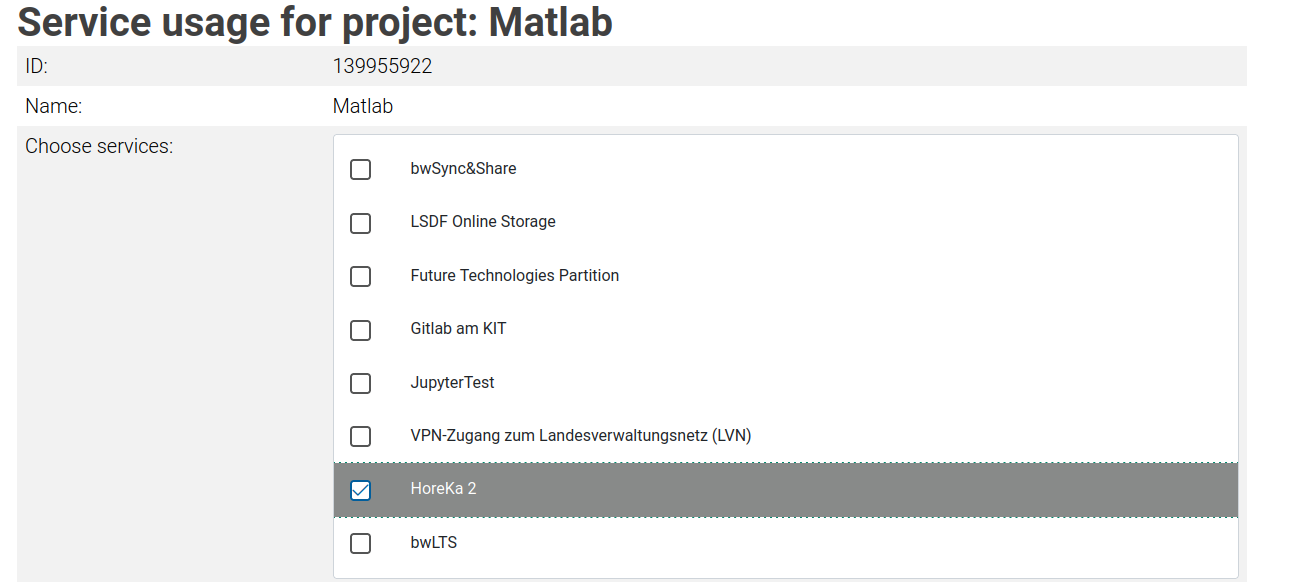
After linking the service, please send an email to NHR-project-review (project-review@nhr.kit.edu) stating:
- Your project ID
- Your project ID in FeLS
and clearly mention that you have linked the HoreKa 2 service for your currently running project.
Once we receive your email, we will approve your request. After approval, you as the PI and all other project members will be able to use the HoreKa2 cluster.
Important
Please do not forget to register for the new service HoreKa 2 in FeLS:
https://fels.scc.kit.edu/
No further steps are required from the user or the PI.
When a project is migrated, the remaining Slurm resource allocations (compute time quotas) are transferred from the legacy system to HoreKa 2. Consequently, the compute resources for that project will be zeroed out on the old system to prevent parallel accounting.
Please note that your existing project names and identifiers will remain exactly the same on the new system.
Migration of data
Users are responsible for migrating their own data from HoreKa to HoreKa 2. This includes data in your project directories and in your workspaces. Note that HoreKa 2 has a dedicated HOME directory, i.e. after the migration of your main project you may decide to move part of your data to your HOME directory. However, note that the quota limits on $HOME are 50 GB capacity and 2 million inodes. We recommend using rsync for transferring files efficiently.
Transferring data via external network connections
After login to HoreKa 2, if the command mount -t gpfs | grep /hkfs/ shows no result you have to transfer data via the external network connection. To do so yo can use the following command:
rsync -x --numeric-ids -S -rlptgoD -H -A --stats \
  ACCOUNT@hk.scc.kit.edu:/full/path/on/HoreKa/ /full/path/on/HoreKa_2/
ACCOUNT is your user account on HoreKa, i.e. for KIT users without the ka_ prefix. The trailing slash (/) on both path names is important.
Transferring data via mounted file systems
After login to HoreKa 2, if the command mount -t gpfs | grep /hkfs/ shows the home and the work file system you can use the mounted HoreKa file systems to transfer the data.
Helper script: migrate_data_hk_hk2.sh
To assist you with this process, we provide the helper script:
/hfs2/data/SCC/migrate_data_hk_hk2.sh
For instructions execute the script with option -h.
Example:
- To transfer the project with name
hk-project-myprojectexecute the script with options
-x -p hk-project-myproject - To transfer the workspace with name
my_workspaceexecute the script with options
-x -w my_workspace.
Be aware: On legacy HoreKa your HOME directory is located inside a project directory. It is not uncommon that users have more than one project and, therefore, more than one project directories.
The helper script provided by us copies data from the project directory of a certain compute time project on HoreKa to the respective project directory on HoreKa 2. If there are multiple projects, you have to run the scripts several times.
The HOME directory on HoreKa 2 remains untouched by the helper script. You may copy the desired files and settings from the transferred project directories to your new HoreKa 2 HOME.