Apply for a Compute Project
The NHR@KIT Center provides level 2 high-performance computing resources. The resources are allocated on a project basis according to a joint science-led procedure.
For detailed information on eligibility, categories, templates, and deadlines, see the linked guides:
If you're already familiar with the process and only need to create a new application or review submitted ones in the project application system (NHR-JARDS), please follow the link:
Who is eligible to apply?
Scientists with a doctoral degree who belong to a German accredited university are eligible to apply. Within the scope of the approved projects, non-doctoral scientists can also use the computers.
Use of HoreKa is free of charge, however the utilization of HoreKa has to be acknowledged on all publications and annual status reports have to be submitted to the NHR@KIT.
When you are submitting your project, please use your formal e-mail of the German University you are affiliated with.
Application for computing time via NHR-JARDS
All the following steps should be done by the PI.
Step 1: Apply for resources via NHR-JARDS
Please apply for resources for your project via NHR-JARDS.
Note
This step is not needed if you are applying for "AI Fast Track".
Step 2: Create project in FELS
Follow this link and select your organisation. Log in with your login details. Then you will see a list of all projects for which you are the Principal Investigator (PI). You now have the option of creating a new project.
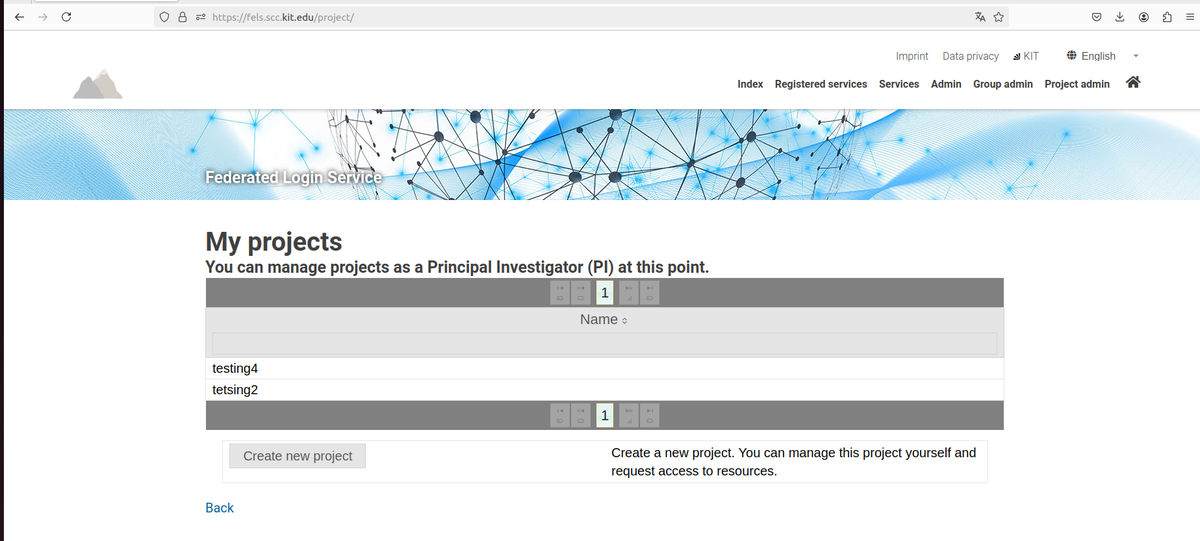
Step 3: Configure project details
This page opens after you press the "Create new project" button. Here you can name your project and give it a short name as well as a group name and add a short and a detailed description. Then click on "Save".
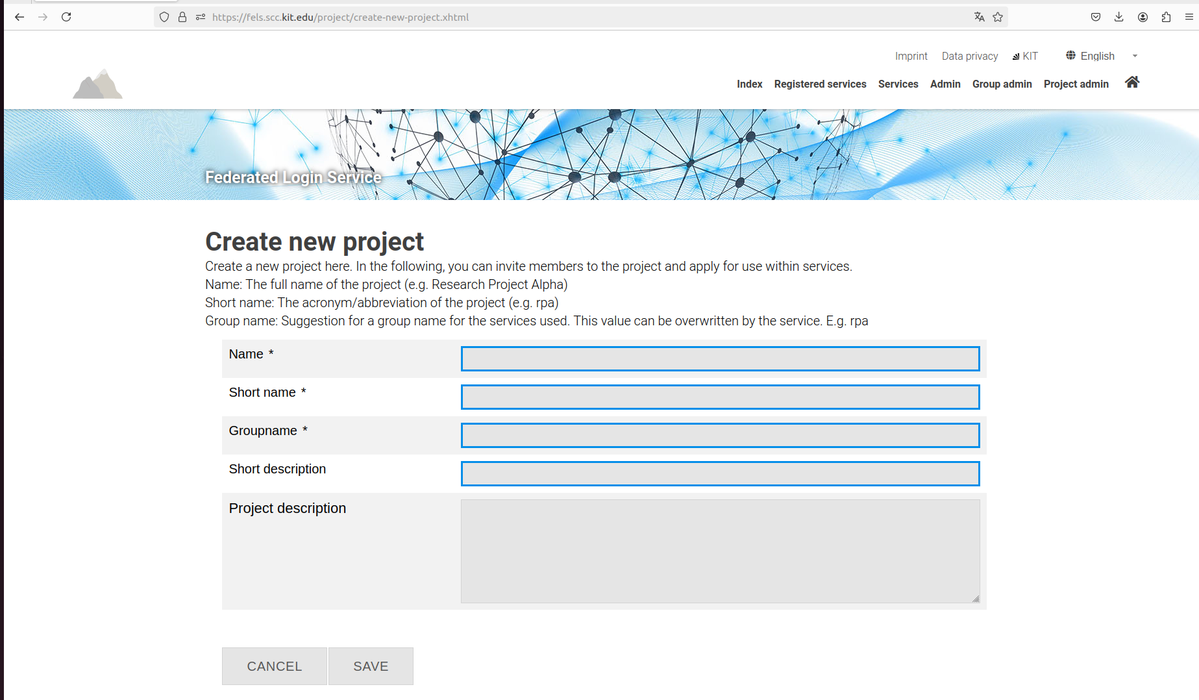
Step 4: Select resources
You will then be taken to this page where you have the option of either deleting the project, or adding further members, or selecting a resource for your project.
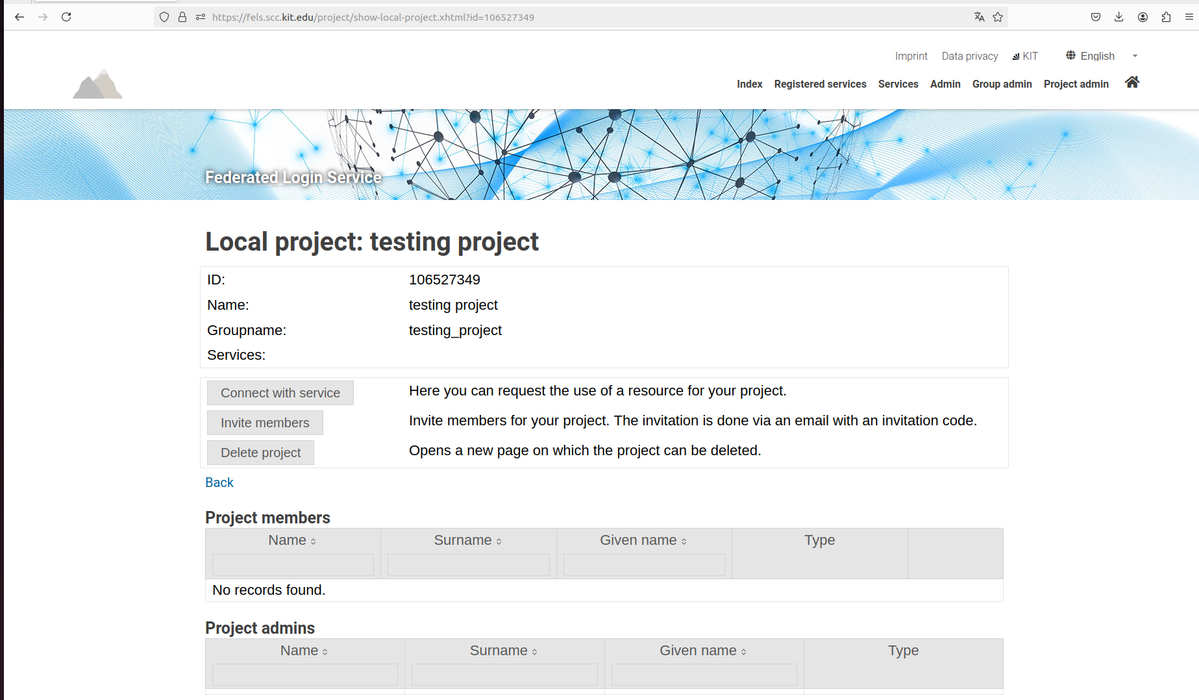
Step 5: Connect with service
In this case, please click on "Connect with service" and select "HoreKa". Then press "Submit request" to submit your request for your project to us.
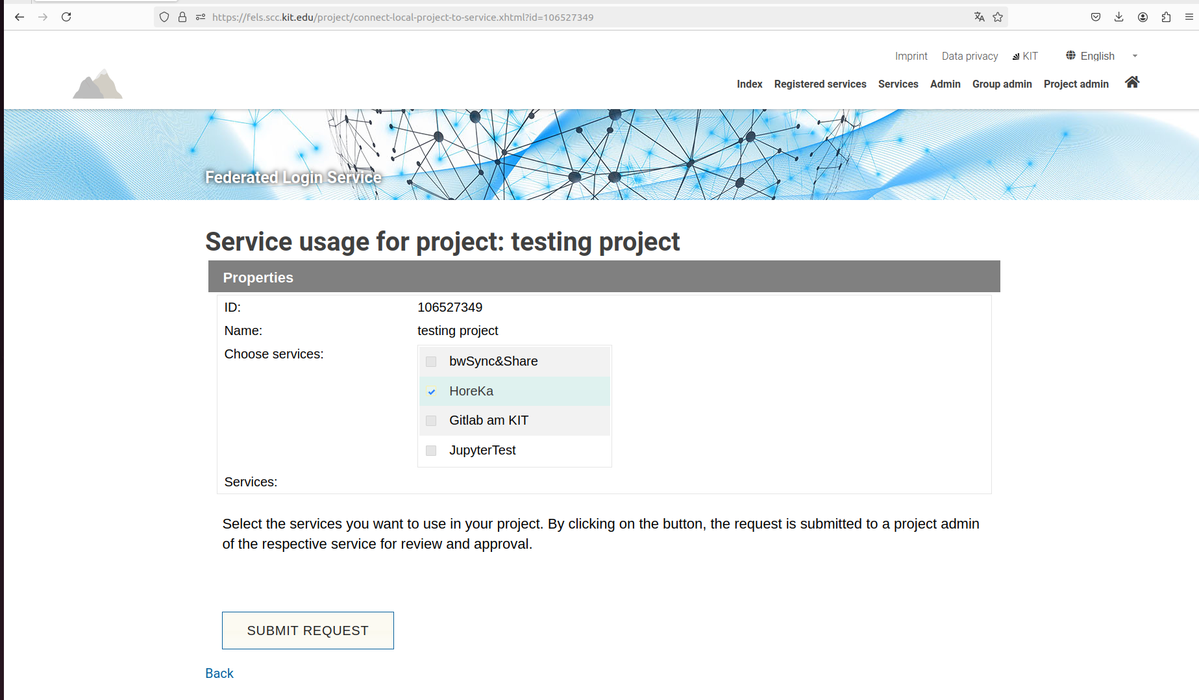
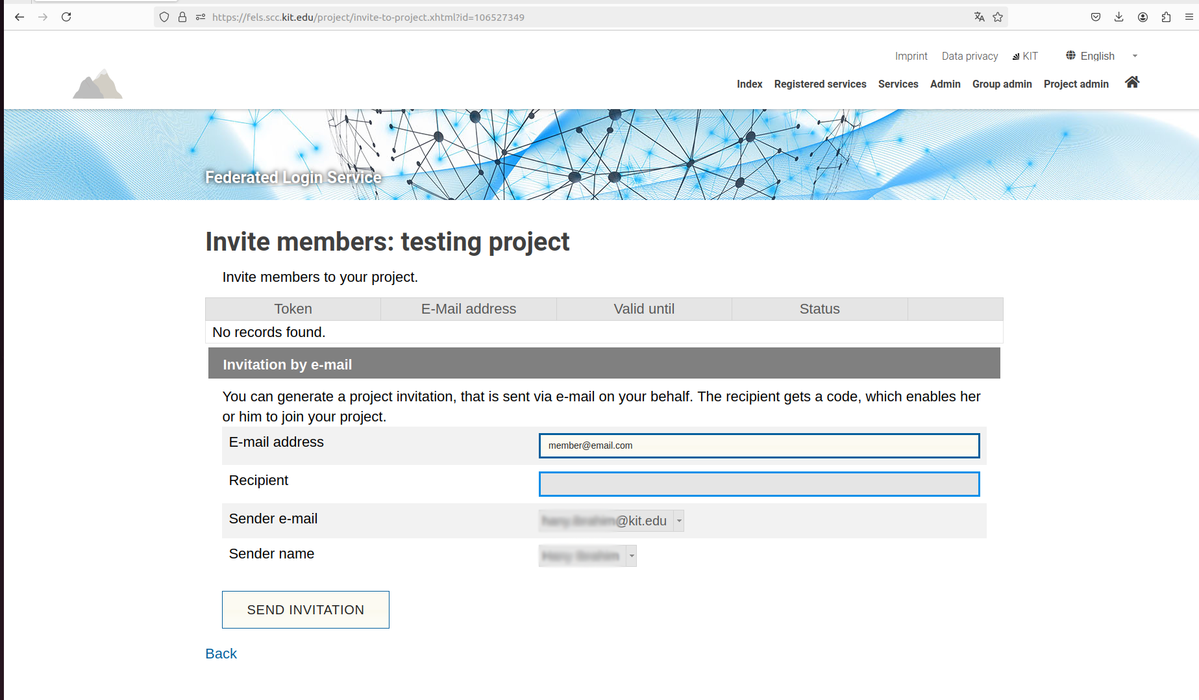
Step 6: Invite team members
You then have the option of inviting other people to your project. Please enter the e-mail address and name of the person you would like to add to your project. Under "Sender e-mail" and "Sender name" please enter your own e-mail address and your own name. Then click on "Send invitation".
Step 7: Upload signed form
Please upload the form which was signed by the PI to NHR-JARDS, which you received via mail after you applied for the project.
Note
This step is not needed if you are applying for "AI Fast Track".
Step 8: Notify project review
Send a message to project-review@nhr.kit.edu stating that you have created your project and informing about the ID In FELS of the project and its name.
If you apply for "AI Fast Track", please fill in this form and attach it to your mail.
Step 9: Confirm first access
After you access your project on the machine for the first time, kindly send an email to project-review@nhr.kit.edu stating that you have accessed the machine, in order for us to setup the correct resources granted for you.
Note
This step is not needed in case of test applications.
Questions?
In case you have any further questions or inquiries, please contact us via mail (project-review@nhr.kit.edu).