SSH Keys
SSH keys can be used as an alternative to password-based login. Two types are supported:
- Interactive keys — for regular interactive logins. Requires one initial 2FA login to activate the key; afterwards no password or OTP is needed. With an SSH key pair generated using a FIDO2/U2F hardware security key (
ed25519-sk), no TOTP is required at all. - Command keys — for automated workflows (e.g. scripts, data transfers). Restricted to a single command and IP address, and require administrator approval.
SSH Key basics
The usual process is the following:
-
The user generates a pair of SSH Keys, a private key and a public key, on their local system. The private key never leaves the local system.
-
The user then logs into the remote system using the remote system password and adds the public key to a file called
~/.ssh/authorized_keys. -
All following logins will no longer require the entry of the remote system password because the local system can prove to the remote system that it has a private key matching the public key on file.
While SSH Keys have many advantages, the concept also has a number of issues which make it hard to handle them securely:
-
The private key on the local system is supposed to be protected by a strong passphrase. There is no possibility for the server to check if this is the case. Many users do not use a strong passphrase or do not use any passphrase at all. If such a private key is stolen, an attacker can immediately use it to access the remote system.
-
There is no concept of validity. Users are not forced to regularly generate new SSH Key pairs and replace the old ones. Often the same key pair is used for many years and the users have no overview of how many systems they have stored their SSH Keys on.
-
SSH Keys can be restricted so they can only be used to execute specific commands on the server, or to log in from specified IP addresses. Most users do not do this.
To address these shortcomings, self-managed ~/.ssh/authorized_keys files are disabled on NHR@KIT systems. Instead, all SSH keys are managed centrally through FeLS, which enforces key expiry, passphrase policies, and command/IP restrictions.
No self-managed authorized_keys
It is not possible to self-manage SSH Keys via ~/.ssh/authorized_keys. Existing files with this name are ignored. SSH Keys must be managed via FeLS.
Validity of SSH Keys
Interactive SSH Keys are only valid for one hour after the last 2-factor login. They must be "unlocked" by entering the OTP and service password on first use.
Generate a key pair
The recommended key type is ED25519. Generate a key pair with one of the following commands depending on your intended use:
You will be prompted for a file path (accept the default) and a passphrase — use a strong one.
Requires a FIDO2/U2F hardware security key (e.g. YubiKey). No TOTP is needed after the initial registration.
Touch the security key when prompted. Set a passphrase for additional protection.
Minimum requirements of the keys:
- ED25519: 256 bits (default)
- RSA: 2048 bits or more
- ECDSA: 521 bits
Set a strong passphrase on your private key.
Add a new SSH Key to FeLS
- Log into FeLS.
- Click on Overview → My SSH Pubkeys / Übersicht → Meine SSH Pubkeys in the main menu.
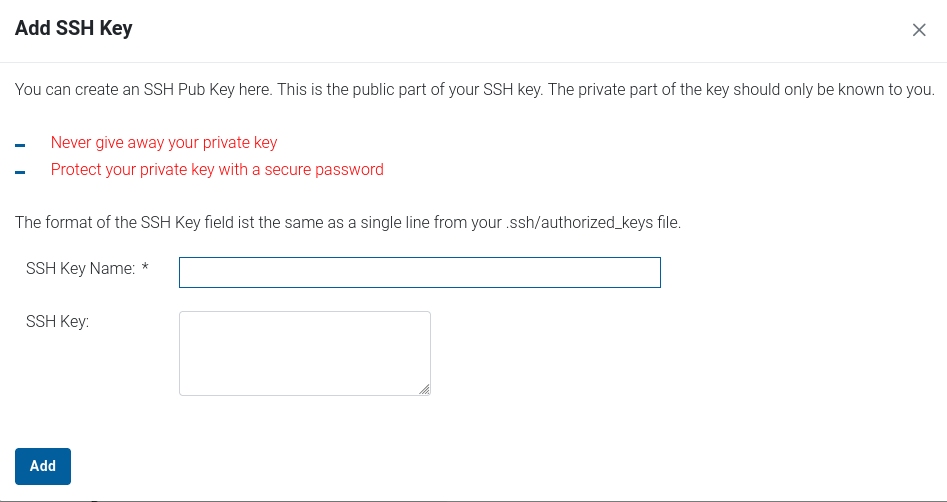
- Click Add SSH Key / SSH Key hochladen.
-
Enter a SSH Key Name and paste your SSH public key (not the private key) into the SSH Key: field. Click Add / Hinzufügen.
Re-using SSH keys
An SSH public key that has already been used before cannot be added again.
-
The new key appears in the list.
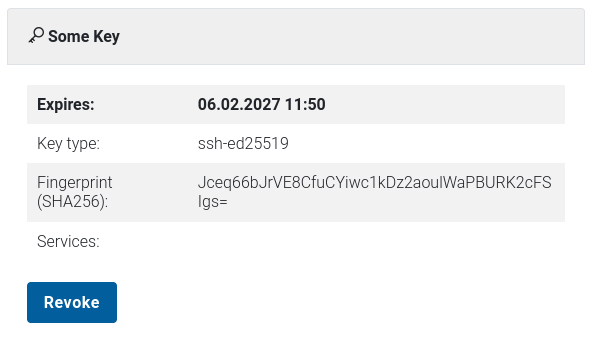
Newly added keys are valid for six months. After that they are revoked and blocked from reuse.
Register an Interactive Key
Interactive Keys can be used for normal interactive logins. They are valid for one hour after the last 2-factor login. On the first login attempt the SSH key will not be accepted; you must log in with OTP and service password to unlock it. After that, the key works for one hour without re-entering the OTP and password.
- Log into FeLS.
- Locate the requested service in the main menu and click Set SSH Key / SSH Key setzen.
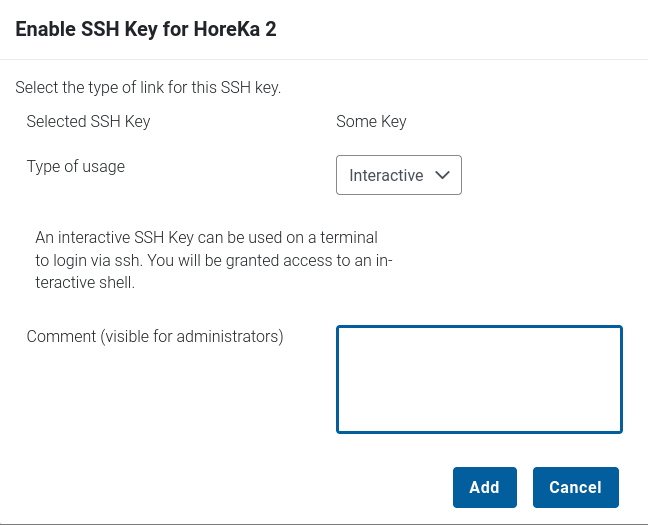
- In the lower block, locate the SSH Key you want to use and click Add / Hinzufügen.
-
Choose Interactive under Type of usage, optionally enter a comment, and click Add / Hinzufügen.
-
The key is now registered.

Register a Command Key
Command Keys are intended for automated workflows where interactive authentication is not feasible. They are always valid (no unlock step required), which makes them high-value targets. The following restrictions apply:
- Must be restricted to a single command.
- Must be restricted to a single IP address or a small subnet.
- Must be reviewed and approved by an HPC administrator before use.
- Valid for one month only.
The registration process is the same as for an Interactive Key, but select Command under Type of usage and fill in the Command and From (network address) fields. Include a comment to speed up the approval process.
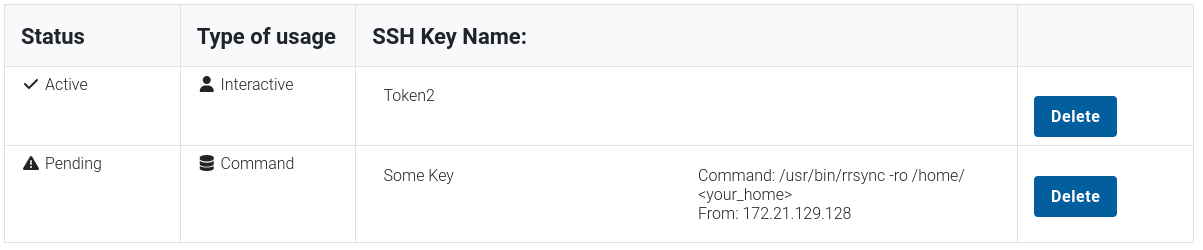
The key will be marked as Pending until approved. You will receive an e-mail once it is active.
Revoke / Delete an SSH Key
- Log into FeLS.
- Click on My SSH Pubkeys / Meine SSH Pubkeys.
- Click Revoke / Zurückziehen next to the key.
Revoked SSH keys
Revoked keys are blocked and cannot be reused.